

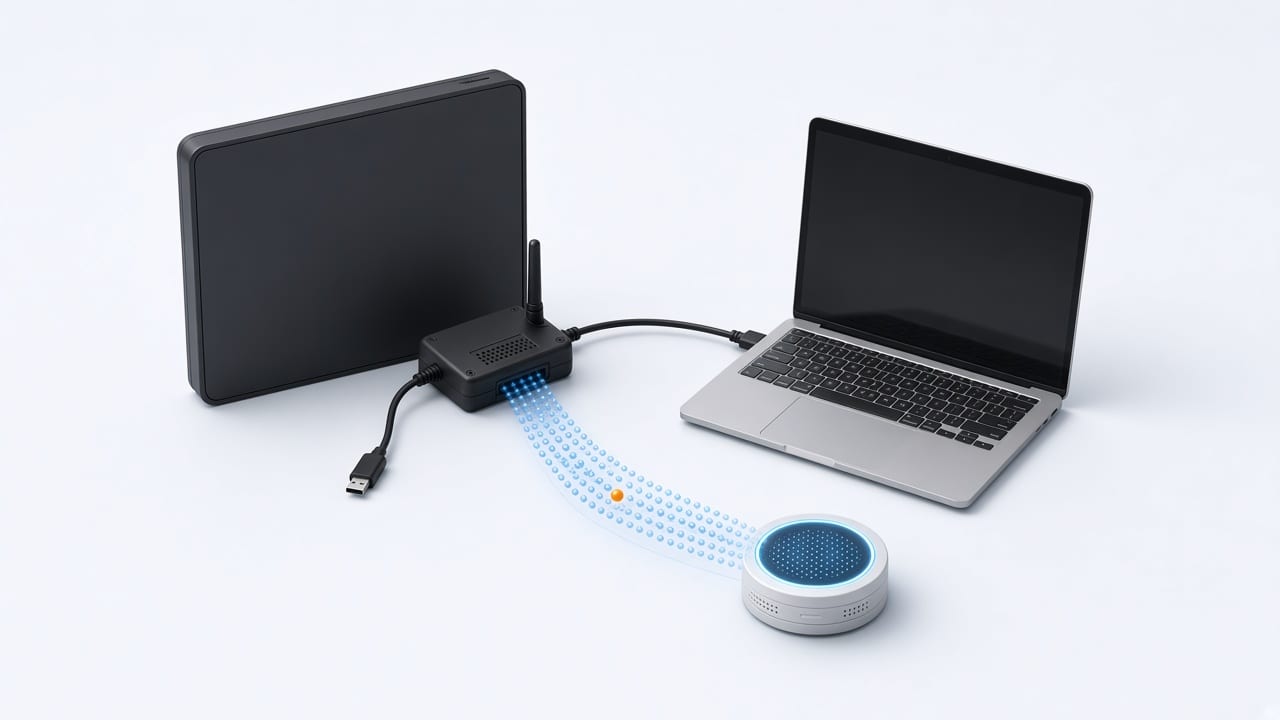
Step-by-step guide to connect a Teltonika tracker to a GPS platform: the data you need, setup with Teltonika Configurator or SMS, and how to check it is reporting.
// Before you start
To connect a Teltonika device (FMB, FMC, FMM and similar families) to a GPS platform you need four things:
- ▸ The device IMEI, used as its identifier on the platform.
- ▸ A SIM with an active data plan and your carrier's APN (plus user and password if the carrier requires them).
- ▸ The domain or IP of your platform server.
- ▸ The Teltonika protocol port on that server. In TrackeraX it is 6027, over TCP.
// Setup with Teltonika Configurator
Connect the device to your computer over USB and open Teltonika Configurator, the manufacturer's official tool. In the GPRS section enter the APN; in the server section set the domain, the port and the TCP protocol. Save the configuration to the device and wait for it to restart. If the firmware is very old, update it first from the same tool.
// Setup over SMS
If the device is already installed in the vehicle, you can configure it with text messages. Teltonika accepts SMS commands to set the APN and server details; the exact syntax depends on the model and firmware, so check it on the manufacturer's official wiki before sending them. Always use the SMS password if you set one.
// Create the device on the platform
In TrackeraX, create the device with its IMEI and pick the matching Teltonika model. When the device opens a connection to the server it identifies itself with that IMEI, and positions show up on the map within seconds. If you see no data, check in this order: SIM balance and data, APN, domain, port, and that the IMEI is typed correctly.
// Sensors and inputs
Teltonika sends much more than position: ignition, external and internal voltage, digital and analog inputs, 1-Wire or Bluetooth temperature, and CAN bus data on models that read it. On the platform you turn each parameter into a sensor to use it in reports and alerts.
// Commands from the platform
With the device online you can send it commands from TrackeraX, such as engine cut and restore if you have a relay on the digital output, or custom manufacturer commands. Always test engine cut commands with the vehicle stopped and following your country's regulations.